CSV Import & Export
Move data in and out of DataTables as CSV. Import a spreadsheet export to create a new table or top up an existing one, and export any table to a .csv file for backup or sharing.
Importing a CSV
There are two entry points, and they behave differently:
| Where | Result |
|---|---|
| Import button on the DataTables overview | Creates a new table with a schema inferred from the file |
| A table's gear menu → Import CSV | Imports into that existing table, mapping CSV columns onto its columns |
Accepted files: .csv, .tsv, and .txt, up to 50 MB. Delimiters (comma, tab, semicolon, pipe) are auto-detected.
Step 1 — Upload
Drop a file onto the upload area or click to browse. Konduit reads it in your browser and guesses whether the first row is a header. It handles quoted fields, escaped quotes, and cells that contain commas or newlines.
Step 2 — Preview & configure
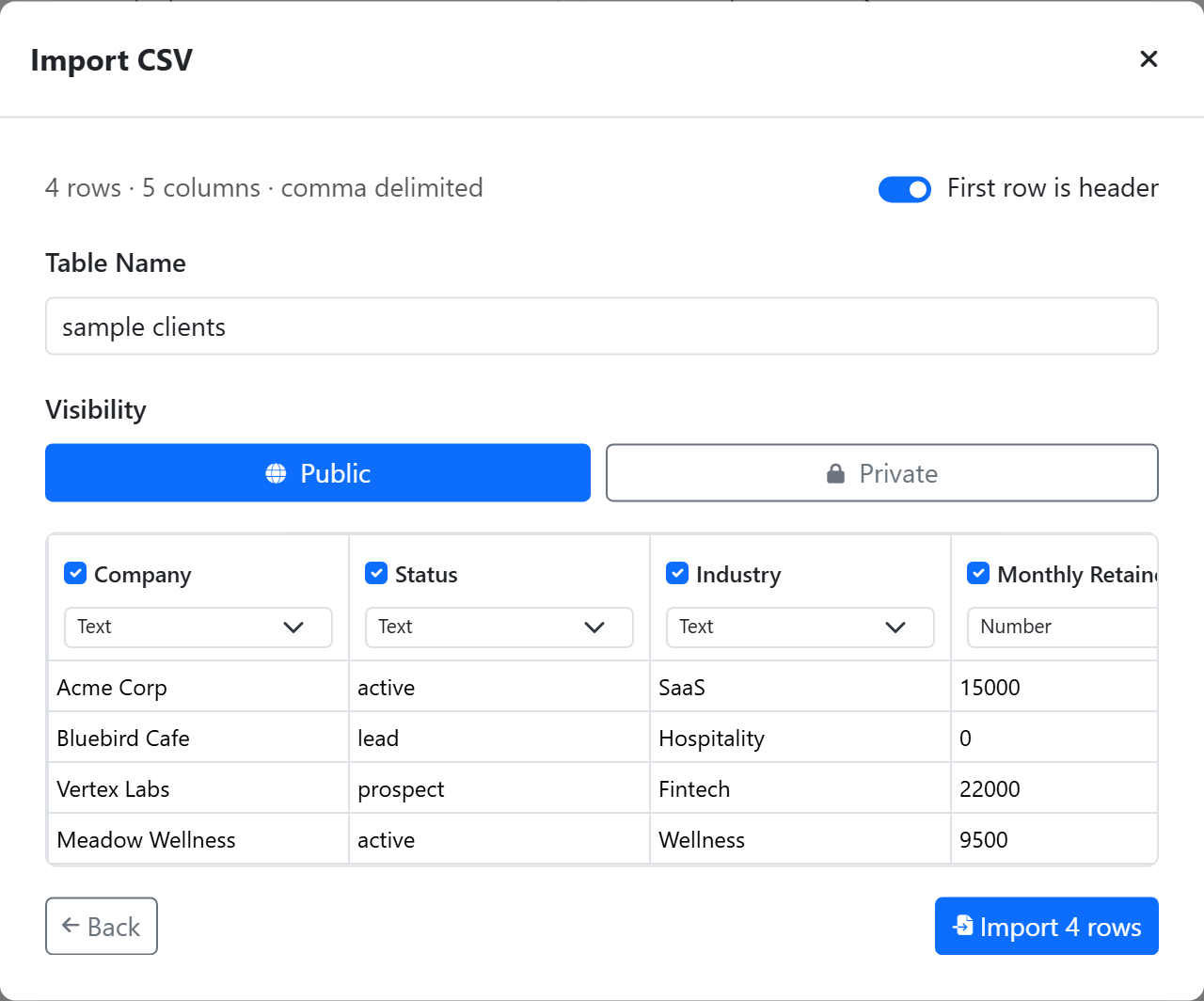
You get a preview of the first 20 rows plus a First row is header toggle. What you configure depends on the entry point.
New table. Name the table and choose its visibility — Public, or Private (Private tables require Pro or higher). Each detected column has a checkbox to include or skip it, an editable name, and a type picker. Konduit pre-fills the type from the data, detecting:
| Detected type | How |
|---|---|
| Number / Currency | Numeric values, with or without a currency symbol |
| Checkbox | Mostly true/false/yes/no/1/0 |
| Date | ISO, US, or long-form dates |
| Email · Phone · Link | Pattern match on the values |
| Dropdown | A small set of repeating values (auto-builds the options) |
| Tags | Comma-separated values (auto-builds the options) |
| Long Text · Text | Everything else |
You can override any of these before importing. See Field Types for what each type does.
Existing table. Konduit auto-maps CSV columns to table columns by matching names (case-insensitive). Each CSV column gets a dropdown to pick the target column or Skip it. You also choose an Import Mode:
- Append new rows — every CSV row becomes a new row (default).
- Update existing rows by key — match each CSV row against an existing row by a key column. If a match is found the row is updated; if not, a new row is inserted. This is an upsert, ideal for re-syncing an external export on a schedule.
When you pick update-by-key, choose the Match by column. Konduit defaults to a sensible key — a column marked unique, otherwise a serial/autonumber column, otherwise the table's display column. The key column must be one of the columns you're mapping (the value has to come from the file).
What happens after you confirm
The raw file is uploaded and the import runs as a background job, so large files don't block you. You'll see a quick confirmation immediately and an in-app notification when it finishes — for an upsert it reports both counts, e.g. "38 added, 100 updated." If the same key appears more than once in a single file, those rows are collapsed and the last value wins (you'll see a note in the notification).
Imports are partial-failure tolerant: rows that succeed are kept and the notification surfaces the first few errors rather than throwing the whole file away.
How values are converted
Cell text is converted to each column's type on the server:
| Type | Conversion |
|---|---|
| Number / Currency | $ and thousands separators stripped, parsed as a number |
| Checkbox | true / 1 / yes → checked |
| Date | Parsed and stored as a date |
| Dropdown | Matched to an option by label (case-insensitive) or id; kept as-is if no match |
| Tags | Split on , or ;, each matched to an option |
Relation columns match by display value
When your CSV has a human-readable value for a datatable-link field — for example Loom Coffee Co. — Konduit looks that value up against the linked table's display column on import and resolves it to the correct row. Multi-select link columns split on ; and resolve each part. If a value can't be matched (the display column isn't indexed, or the value doesn't exist in the target table) the raw text is kept rather than dropped, so nothing is silently lost.
For matching to work the linked table's display column must be one of its indexed columns, and link columns can only be populated this way when importing into an existing table that already has the link column — the new-table importer doesn't create link columns.
Heads-up on round-trips: Konduit's own CSV export currently writes a link column's underlying row reference, not its display value — so a Konduit export → re-import won't re-match links. To populate link columns, import from a spreadsheet that carries the display values (e.g.
Loom Coffee Co.).
Automations fire on import
Imported rows trigger the same automations as rows created any other way. Append imports fire the row inserted trigger; update-by-key imports fire row inserted for new rows and row updated for matched rows. This runs per batch as the import processes.
Exporting a CSV
Open a table's gear menu → Export CSV.
- Up to 5,000 rows — the file is generated in your browser and downloads instantly.
- Larger tables — export runs as a background job; you'll get a notification with a download link when it's ready.
The export includes every visible column (in table order) with a header row. Dates are written as YYYY-MM-DD, checkboxes as true/false, and multi-value cells (tags, people) are joined into one cell. Any missing formula values are computed as the file is built.
To export a filtered or shaped subset rather than the whole table, use Export as Query on the view toolbar, which hands your current filters and sorts to KSQL (Konduit's query language).