DataTables
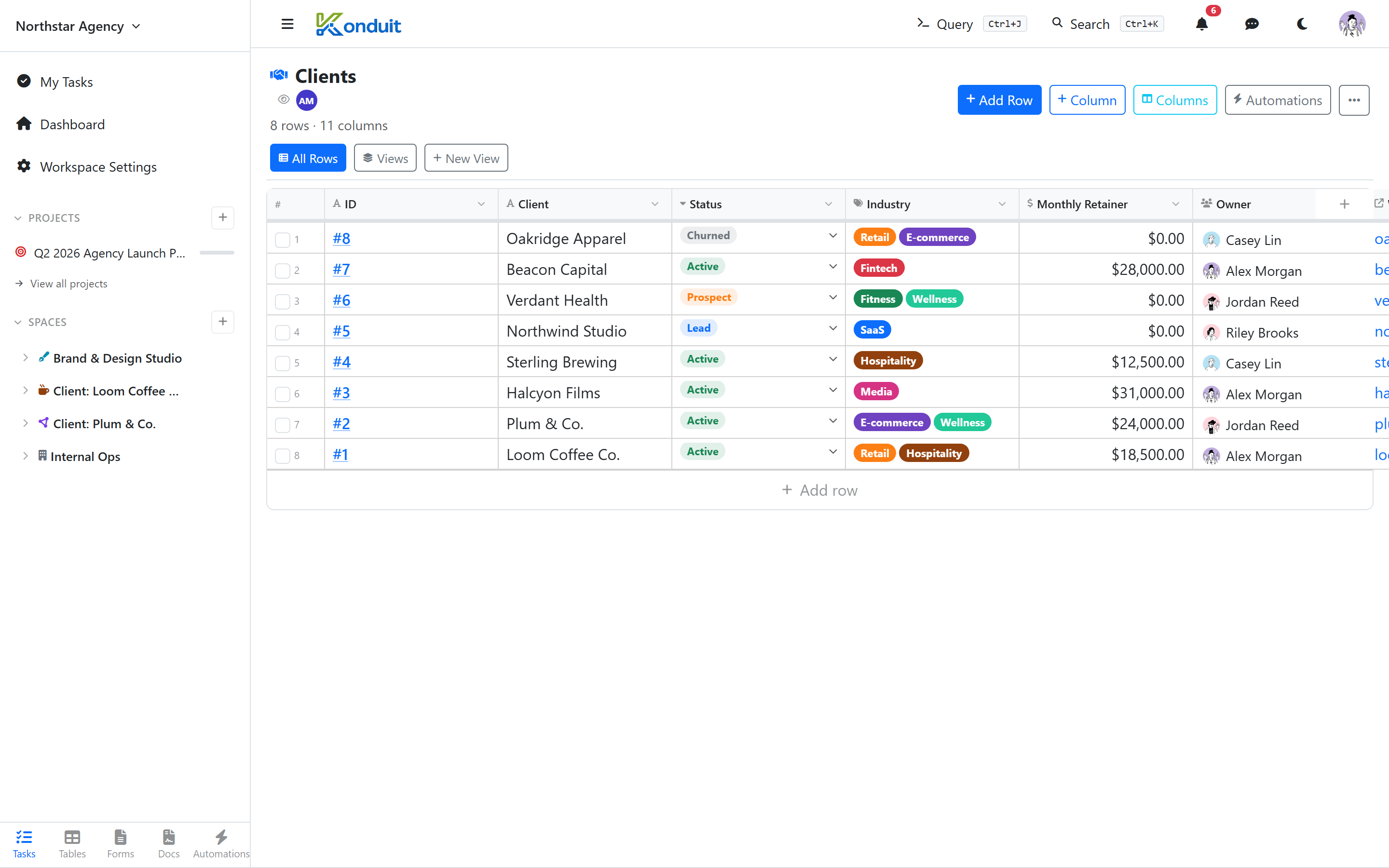
A DataTable is a user-created relational table in your workspace. Think of it as a spreadsheet with columns of typed values, except every row has a stable ID, columns can be indexed for fast filtering, and tasks can link to rows as live data.
Common uses: customers, inventory, invoices, line items, vendors, products, client engagements, expenses.
Tracking work across an initiative? That's what Projects are for — they group tasks from multiple lists under one banner. A DataTable is for records about things (a list of client engagements with budgets and dates); a Project is for the work itself.
Creating one
Click + → New table in the sidebar (or Create Table on the DataTables overview). Pick a template or start blank, then name it, optionally choose a color and icon, and save.
Every new table starts with three automatic columns that Konduit fills in and maintains for you:
| Column | What it holds |
|---|---|
| ID | A sequential number, unique per table, that never gets reused |
| Created | When the row was added |
| Modified | When the row was last changed |
You can't edit or delete these — add your own columns from there.
Columns
Every column has a type (the same catalog as custom field types) plus optional configuration. Alongside the basics — text, long text, number, currency, date, checkbox, dropdown, tags, slider, people, email, phone, link, attachment — DataTables add a few relational and computed types:
| Type | What it does |
|---|---|
| Relation | Links a row to a row in another DataTable. See Relationships below. |
| Serial | Auto-generates sequential IDs like INV-00001 or HAWB-2026-00042, with optional yearly/monthly/daily resets. |
| Formula | Computes a value from other columns on the same row. See Formulas. |
| Linked Summary | Rolls up values from related rows — total of line items, count of tickets, latest service date. See Roll-ups. |
| Task | Links a row back to a task, which is what powers items-mode line items. |
Per column you can also mark it unique (each row must have a different value).
Primary Display Columns
When a row is referenced elsewhere — in a datatable-link field on a task, an editor chip, or a relation column on another table — Konduit shows a short display label instead of the raw row. You choose which columns form that label.
Open the table's gear menu → Display columns (Table Settings → Display tab). Pick up to 3 columns; they're joined into the label in the order you select them. The first column is the row's primary identifier — Konduit also uses it as the default key when updating rows by key on import and for AI suggestions.
Any non-system column is eligible except formula, attachment, and autonumber. Relation columns are allowed too — a row's label can be its linked row's name (e.g. an Invoice labelled by its Customer).
Adding rows
- Inline: click the + at the bottom of the table
- Import: gear menu → Import CSV — see CSV Import & Export
- Forms: a public form can target a DataTable to create rows on submission
- API:
POST /datatables/{id}/rowsand bulk insert
Relationships
DataTables connect to each other through relation columns. The Relationships button in the toolbar (visible to table admins) opens a panel that shows — without running any queries — every connection this table has:
- Links from this table — each relation column on this table: which table it points to, which column it displays, and any columns it carries over (see auto-fill below). Per link you can Edit it or Fill existing rows now to backfill carried-over values into rows that are already linked.
- Links to this table — other tables whose relation columns point back at this one (reverse relations). Click one to jump to that table.
- Connect — create a new related (child) table, or add a relation column linking to an existing table.
Auto-fill (carry-over)
When you create or edit a relation column, you can map fields from the linked row into local columns on this table. Selecting a row then copies those values over automatically — for example, picking a Customer fills in that customer's phone and city on the current row. Use Fill existing rows now in the Relationships panel to apply the mapping to rows that were linked before you set it up.
Roll-ups (Linked Summary)
A Linked Summary column aggregates values from related child rows into this table — the total of all line items on an invoice, the number of open tickets per customer, the latest service date per piece of equipment.
Add it like any other column: pick the child table, the column to aggregate, and the aggregation (sum, count, average, min, max, and more). The value updates automatically when the child rows change. For full setup, filtering, and the difference between a roll-up and a formula, see Roll-ups.
How DataTables stay fast
Konduit automatically indexes most column types so filtering, sorting, and queries stay fast even on large tables — there's nothing to configure. A few heavy types (long text, attachments, links, phone, sliders) aren't indexed by default; they're still fully readable and editable, they just don't drive queries. There's no per-column switch to force indexing — it's automatic by type. The one lever: marking an indexable heavy type (phone, link, or slider) unique forces an index on it server-side. Long text and attachments can't be indexed at all.
Because of this you can store rich content — long text, attachments, other bulky values — in a row without slowing down queries on the rest of the table.
Linking tasks to rows
Use a Datatable-link Field to connect tasks to rows. Two modes — select (tasks pick rows) and items (rows back-reference tasks as line items).
Querying with KSQL
KSQL reads DataTables natively. Use the SQL Console for ad-hoc queries, dashboard widgets for metrics, and Routines for periodic emails.
SELECT Region, COUNT(*) AS customers, SUM(Revenue) AS revenue
FROM Customers
WHERE Status = 'active'
GROUP BY Region
ORDER BY revenue DESC
You can also filter and sort a table in the UI, then hit Export as Query to hand the current filters and sorts to the KSQL console as a starting query.
Exporting
Gear menu → Export CSV downloads the table as a CSV file. See CSV Import & Export for the full import and export flow, including updating existing rows by key.
Limits
| Plan | DataTables | Rows per table |
|---|---|---|
| Free | 3 | 250 |
| Pro | 10 | 10,000 |
| Business | 25 | 50,000 |
Business + add-ons: up to 50 DataTables / 100,000 rows per table (hard caps). Higher datatable counts and row limits are available as add-ons on the Business plan. See pricing.