Notifications
Konduit keeps you in the loop through notifications — short alerts about things that happen to your work: someone @mentions you, assigns you a task, comments on a task you follow, or an automation fires. Notifications are per-user — each person sees only their own — and are delivered two ways: in-app through the bell in the top navigation, and (optionally) by email.
The bell
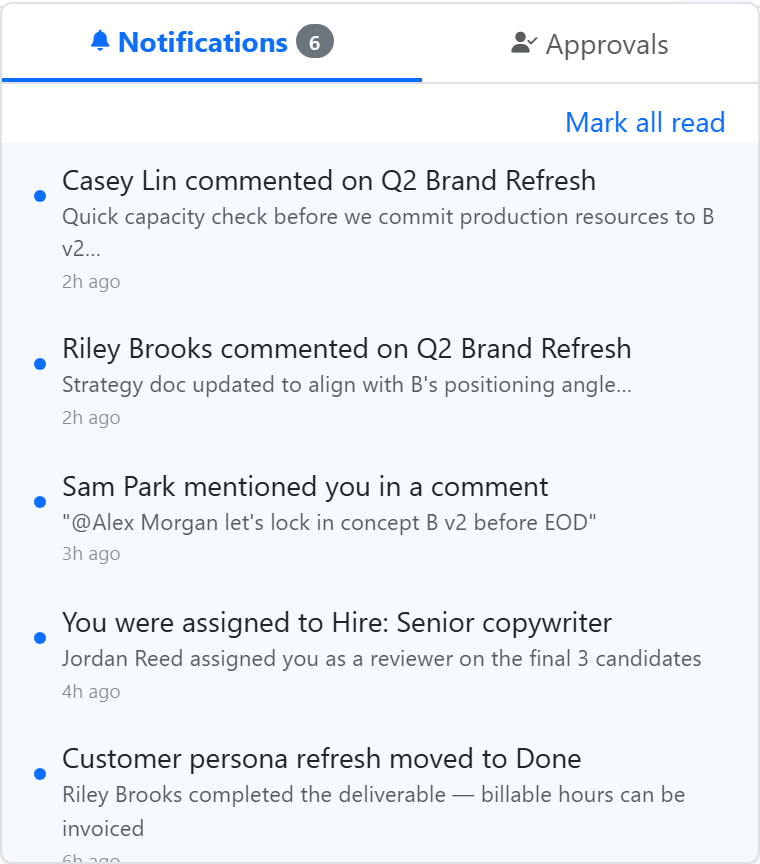
The bell lives in the top-right action cluster, next to Search. A red badge shows how many items need your attention; it caps at 99+. Click the bell to open the panel.
On desktop the panel is an anchored dropdown. On mobile it slides in as a full-height side panel. Either way it has two tabs:
- Notifications — your alerts (mentions, comments, assignments, and so on).
- Approvals — automation actions that are waiting on your decision. These are surfaced separately because they're action-required. See Approvals.
The badge counts unread notifications plus pending approvals, so a single number tells you how many things to look at.
Read and unread
Unread notifications sort to the top and are marked with a blue dot and a highlighted row. Read ones fall below.
- Click a notification to mark it read and jump straight to the linked item — the task, datatable row, or other page it refers to.
- Mark all read clears the unread state for everything at once (the button appears whenever you have unread items).
New notifications arrive in real time — when something happens while you're in the app, the bell badge ticks up and a small pop-up appears with the alert, without a page refresh.
What triggers a notification
| Event | You're notified when… |
|---|---|
| Mention | Someone @mentions you in a comment or task description |
| Assignment | You're assigned or unassigned from a task |
| Comment | A comment is added to a task you're assigned to or watching |
| Status change | A task you're assigned to changes status |
| Attachment added | A file is added to a task you watch |
| Form submission | Someone submits a form you created (when configured) |
| Routine | A scheduled query (Routine) sends its result |
| Automation | An automation rule runs a send notification action targeting you |
| Approval | An automation is paused waiting on your decision — you also get an email with Approve / Reject buttons |
| Chat message | A direct message arrives while you're away — one alert per conversation, refreshed as new messages land, plus at most one email per conversation per hour. If you're online, the message just appears in chat — no extra alert |
| Chat mention | Someone @mentions you in a chat message — alerted whether you're online or not, under your Mentions setting |
You are never notified about your own actions, and actions taken by the AI assistant (the bot) don't generate notifications.
Who gets notified
For task activity, recipients are worked out from watchers, assignees, and mentions:
- Watchers — click Watch on a task to follow it. A watcher set to all activity is notified on comments, status changes, assignee changes, and attachments. Assignees are watched automatically.
- Assignees — always notified about status changes, comments, and assignment changes on their tasks.
- Mentioned people — always notified when @mentioned, whether or not they watch the task.
@-mentioning a member group notifies each member.
@Mentions
Typing @ in a comment or a task description and picking a teammate sends them a mention notification (in-app and, unless they've muted it, email). Mentions are the most direct way to pull someone in — they cut through watcher and assignee rules and reach the person no matter what.
Delivery channels
Every eligible notification is delivered in-app. Most types can also send an email, so you hear about important activity even when you're not in the app. Email is in addition to in-app — turning off email for a type keeps the in-app alert.
Task emails cover comments, mentions, status changes, assignments, and attachments, and include a link straight to the task. Every email has an unsubscribe link.
Preferences
Control what reaches you at Settings → Notifications. Each event type has an independent In-App and Email toggle:
| Event type | Description |
|---|---|
| Mentions | When someone @mentions you in a comment or description |
| Assignments | When you're assigned or unassigned from a task |
| Comments | New comments on tasks you're following |
| Status Changes | When a task you're assigned to changes status |
| Form Submissions | When someone submits a form you created |
| Routines | Routine result emails from scheduled queries |
| Automations | Notifications triggered by automation rules |
Everything is on by default — it's an opt-out model, so you only ever turn things off. Click the In-App or Email column header to mute or enable an entire channel in one move. Save your changes with Save Preferences.
If you mute mentions, Konduit warns you: you won't be pulled in even when someone @mentions you directly. That's usually not what you want.
Automation alerts
Automation rules can notify people directly with a send notification action, which delivers an in-app alert (and an optional email) to the users you pick. These respect each recipient's notification preferences for the Automations type. See Automations for how to build one.
Next
- Comments — @mentions, rich text, embedded queries
- Tasks — assignees and watchers
- Automations — send-notification actions
- Approvals — the decision inbox behind the Approvals tab
- Scheduled Reports — routine result emails