Views Overview
A view is a saved lens over the same underlying data. It bundles a set of filters, sorts, a layout (which columns or card fields show), and a visibility setting — then remembers all of it under a name. Every task list and every datatable ships with a default view and lets you save as many more as your plan allows.
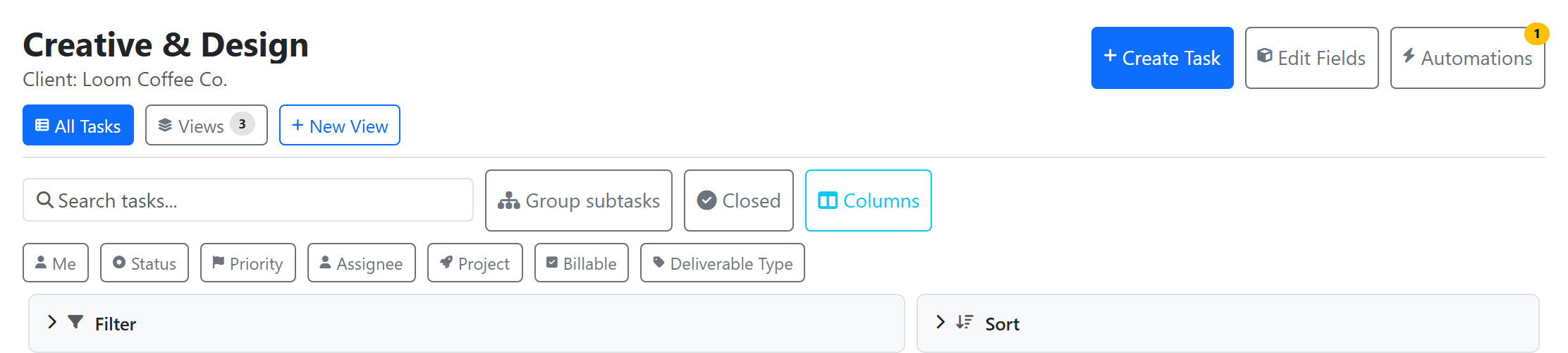
Views on task lists
A task list has two view types:
| Type | What it looks like | More |
|---|---|---|
| Table | Spreadsheet-style rows and columns with inline editing. The default view, All Tasks, is a Table view. | this page |
| Board | Kanban-style columns — one column per status, one card per task. | Kanban |
Switch views from the tabs at the top of the list. All Tasks is always the first tab and can't be deleted; any custom views you add sit behind the Views panel button next to it.
Where other visualizations live
Konduit does not put every visualization on a list. Some are separate features:
| Visualization | Where it lives |
|---|---|
| Kanban board | A Board-type view on a task list — see Kanban |
| Gantt timeline | A project view (on a project page, not a list) — see Gantt |
| Calendar | A dashboard widget, not a list view — see Widgets and Dashboards |
There is no calendar view type on lists — task due dates are visualized through the Calendar dashboard widget instead.
Views on datatables
Datatables work the same way: every datatable opens on a default All Rows view, and you can save the current filters and sort as a named view for quick recall.
Use New View to save whatever filters and sort you currently have applied as a fresh view. If you're the view's creator, changes you make to its filters or sort auto-save back to that view a moment after you stop editing — so a view stays in sync with how you actually use it.
See DataTables for the table itself.
Filters and sorts
Every view carries its own filters and sorts:
- Filters — pick a column, an operator (
is,is not,contains,includes,is set, and so on), and a value. Rows can be combined with all (AND) or any (OR) logic. - Sorts — order by one or more columns, each ascending or descending.
On task lists you can filter by Status, Priority, Assignee, Project, Due Date, Start Date, Source, and any custom field assigned to the list. On datatables you filter by the table's own columns.
Saving a view
On a task list, open the New View menu and pick a type (Table or Board), give it a name, and choose its visibility. On a datatable, apply the filters and sort you want, then hit New View and name it.
From the Views panel, each saved view can be renamed, duplicated, switched between private/public, and deleted. The default view (All Tasks / All Rows) can't be deleted.
Visibility
| Visibility | Who sees it |
|---|---|
| Private | Only you — marked with a lock icon |
| Public (shared) | Everyone in the workspace — appears under Public Views for teammates |
Toggle a view between private and public any time from its actions menu. New views default to private.
Shareable view links
Datatable views can be shared by link. From a saved view's actions menu, choose Copy link — the URL activates that exact view (its filters and sort) for anyone in the workspace who opens it. When a teammate opens a shared link, a "Shared by …" banner appears with a Save copy button so they can bookmark it as their own view.
Note: task list views do have a per-view deep link (
/list/{listId}?view={viewId}), and the AI assistant's view-builder returns one. What's datatable-only is the manual Copy link button in the view actions menu — a list view's actions menu offers only Rename, Duplicate, Make public, and Delete.
Saved views and your plan
| Plan | Saved views |
|---|---|
| Free | 3 |
| Pro | Unlimited |
| Business | Unlimited |
The limit counts custom views you create; the built-in default view doesn't count against it.
Building views with AI
The in-app assistant can create views for you in plain language — no manual filter-building required:
- "Add a board of just my open tasks in Service Calls" → a Board view on that list.
- "Make me a view of overdue invoices" or "a tab with only active customers, and send me the link" → a saved datatable view.
- "Add a gantt view to the Q3 Roadmap project" → a project Gantt view (a Pro-plan or higher feature).
You describe the filters using everyday names (statuses, people, columns, priorities); the assistant resolves them and saves the view. For datatable views it returns an Open link — the same shareable link as Copy link — so you can jump straight to the result or pass it to a teammate.
Next
- Kanban — the Board view up close
- Gantt — the project timeline view
- Dashboards and Widgets — including the Calendar widget
- Scheduled Reports — email a saved view on a schedule