Datatable-link Fields
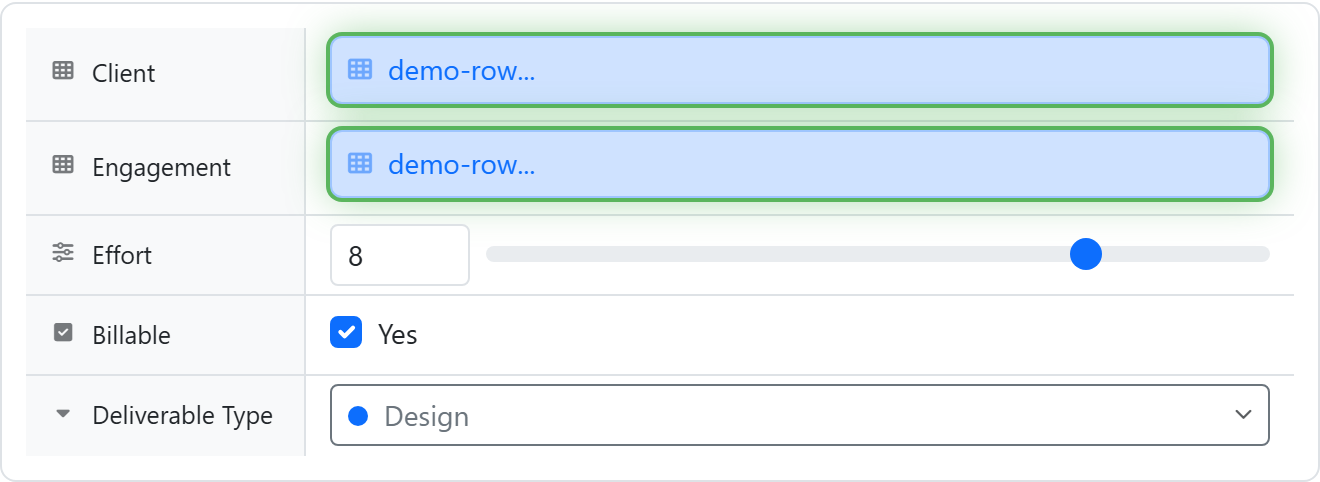
A datatable-link field is a custom field that connects a task to rows in a DataTable. Update the row once → every task linked to it reflects the new value.
Why it's different
Without it:
- "Customer" is a dropdown of customer names you re-type into every list
- Updating a customer's email means editing every task referencing them
With a datatable-link field:
- "Customer" is a live link to a row in your Customers DataTable
- Update once → reflected everywhere
- Tasks can pull any column from the linked customer (revenue, region, account manager) for filtering and reporting in KSQL, Konduit's SQL-style query language
Two modes
When you add the field you choose how it works. The two modes store data differently and can't be switched later, so pick deliberately.
Pick from table (select)
The task picks existing rows from the linked DataTable. Chosen rows show as tags/chips, and the field keeps a link to each one.
Use this when:
- Each task is associated with one or more customers / projects / parts
- You want to filter tasks by linked-row attributes (revenue tier, region, etc.)
Track and add entries (items)
The DataTable rows get a column that links back to this task, and the field shows them as a mini-table inline. You add, edit, and delete rows directly from the task.
Use this when:
- A task has child rows (line items, parts, expenses) that live in their own DataTable
- You want to manage those rows without leaving the task
A quick example — a repair shop. The same repair task can use both modes side by side:
- Pick from table (
select) — a Customer field. You pick "Loom Coffee Co." from your Customers table; it shows as a chip, and you can now filter repairs by that customer's region or plan tier. The customer row already exists — the task just points at it. - Track and add entries (
items) — a Parts Used field. An inline mini-table on the task where you add each part (Brake pad ×2 · Cable ×1); every line becomes a row in your Parts datatable that links back to this repair, and the field footer totals the cost.
Rule of thumb: select points out at rows that already exist; items grows a list of child rows that belong to this task.
Setting up "Pick from table"
- Create or pick a DataTable (e.g. Customers)
- Add a custom field on your tasks list, type DataTable, and choose Pick from table
- Pick the target table
- Choose display columns — up to 2 columns to show on the chips (text, number, email, phone, url, dropdown, or another relation column all work as display columns)
- Choose whether the field allows one row or multiple rows
Rows appear as chips showing your display columns; picking a row that no longer exists is prevented — each selection is validated against the target table.
Setting up "Track and add entries"
- Create a "child" DataTable (e.g. Line Items) that will hold the per-task rows
- On the parent task list, add a custom field, type DataTable, and choose Track and add entries
- Pick the child table and the task link column (the column on the child table that points back to the task). If the child table has no task column yet, Konduit creates one automatically on save
- Choose which columns shown on task appear in the inline sub-table — the rest stay editable in the row detail modal
- Optionally give any shown column a summary (sum, average, count, etc.) that renders in the sub-table footer. Summaries live on the field, so two different fields using the same table can total different columns
Items-mode entries live in the child DataTable, not on the task record itself. They're read-only through the tasks API — to add or change entries programmatically, POST /datatables/{table_id}/rows with the task link column set. See the DataTables API.
Linking one DataTable to another
DataTables don't only link to tasks — they can link to each other. On a DataTable, add a column of type Link to another DataTable (a relation column) to point each row at a row in another table (e.g. every Invoice points at a Customer). The chip shows the target table's display value, and KSQL can join straight through it.
Carrying columns over (auto-fill)
When you configure a relation column, you can pick columns from the linked table to carry over — they fill in automatically the moment a row is selected, and remain editable afterward.
- Toggle on any source column ("Region", "Account Manager", …) to bring it over
- For each one, choose Fill into a brand-new column or an existing column of the same type — handy when you already imported, say, a "Customer Name" column and don't want a duplicate
- Already linked rows aren't touched retroactively; use Fill existing rows now to backfill the carried-over values into rows that were linked before you set up auto-fill
Auto-fill is only available for single-select relations — it's ambiguous when a column links to multiple rows at once.
You can also opt into Auto-clear when linked row is deleted. With it on, deleting a row in the linked table clears this field in every row that referenced it; with it off (the default), stale references stay as "Deleted" pills until you remove them manually.
The Relationships panel
Open the Relationships button in a DataTable's toolbar to see and manage every connection in one place:
- Links from this table — each relation column on this table: its target table, the display column it shows, and which columns it carries over. Per link you can Edit it or Fill existing rows now
- Links to this table — other tables whose relation columns point at this one, with the column they link through. Click to jump to that table
- Connect — create a new related child table, or add a relation column linking to an existing table
Totaling linked rows
To roll a child table's rows up into the parent — total a customer's invoices, count a project's open tickets — add a Linked Summary (rollup) column instead of carrying values over. It aggregates across linked rows (sum, count, average, min, max, and more) and updates automatically. See Rollups.
In KSQL
Filter tasks by linked-row data:
SELECT t.Name, t.Status, c.Revenue
FROM Tasks t
LEFT JOIN Customers c ON t.Customer = c.Name
WHERE c.Region = 'EU' AND c.Revenue > 50000
The datatable-link column exposes the linked row's display value, so you join on it directly (t.Customer = c.Name). See KSQL → Special Columns.