Documents & Templates
A document template is a reusable layout — an invoice, quote, receipt, contract, letter, or status report — that you design once and then generate finished documents from, one per task or per DataTable row. You drop in variable pills where live data should go, and Konduit merges the real values in at generation time.
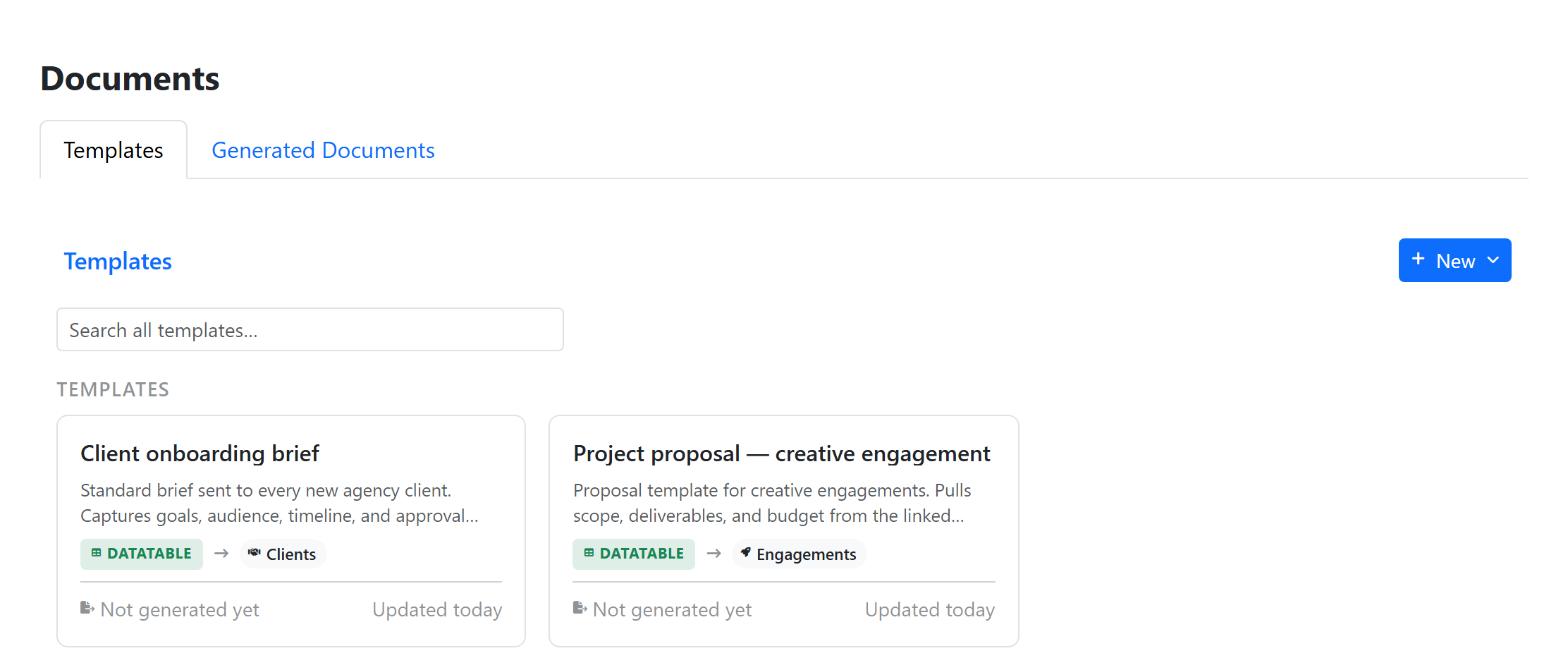
Most templates are bound to a source: either a task list or a DataTable. A template bound to your Invoices datatable can produce one invoice per row; a template bound to your Service Calls list can produce one work order per task.
Templates can also be standalone — bound to no source at all. Pick Standalone when the document isn't about any record: a one-off contractor agreement, a letter, a policy. You write the whole document in the editor (variable pills aren't available, since there's no record to pull from), and Generate produces a numbered document instantly with no record picker. Everything else — signature blocks, sharing, e-signatures, Word export — works exactly the same.
The template editor
Templates are built in the same rich editor used elsewhere in Konduit — type normally, format text, add headings, tables, and images. What makes it a template rather than a plain document is the special content you can insert:
| Insert | What it does |
|---|---|
| Variable pill | A placeholder that resolves to a single value from the source record — a customer name, a due date, a total. |
| Line items block | A table that expands into one row per related child record at generation time (e.g. all the parts on a service call). |
| Totals block | Sums the numeric columns from the line items (and contributors) above it, with freely-labelled percentage and fixed lines — tax, discount, gratuity, retainage — and a Grand Total. |
| Contributors block | For task templates only — a per-person time breakdown with billable rates. |
| Signature block | A place to capture or print a signature. |
| Date insert | A pill that resolves to a relative or absolute date. |
Variable pills
Insert a variable two ways:
- Open the variable picker from the toolbar and pick a field, or
- Type
{{anywhere in the document to open the picker inline.
Variables show as colored rounded pills — a small badge with an icon and the field's label — while you edit, so the template stays readable, and each one resolves to the real value when you generate.
What you can reference depends on the source:
| Source | You can insert |
|---|---|
| Task | Title, status, priority, assignee, due/start dates, tracked/estimated/billable time, and any of the list's custom fields |
| DataTable row | Any column on the bound table; for link columns, you can traverse into the linked row (e.g. pull the Company Name from the Customer a row points to) |
| System (either source) | The current date and time, the workspace name, and an auto document number |
Line items blocks
A line items block renders a table that fills itself with child records related to the record you're generating for:
- On a task template, it pulls from a datatable-link custom field configured in items mode — the mini-table of parts, materials, or line entries attached to the task.
- On a datatable template, it pulls from another table whose rows link back to the row you're generating for.
You choose which columns to show, reorder them, and optionally turn on a totals row. The editor shows a styled preview; the real rows are inserted when you generate.
Totals blocks
A totals block sums the numeric columns of every line items and contributors block above it and produces a Grand Total. Use it at the bottom of invoices and quotes.
What feeds the total
You pick the block's sources explicitly, so one Grand Total can combine several kinds of money:
- A line items block — choose which numeric column on that block contributes. Different blocks can contribute different columns (Parts contribute "Cost", Labor contributes "Total", Fees contribute "Fee") and still land in one total.
- A contributors block — its billable-time money subtotal.
- A task field — any currency, number, or numeric formula custom field on the task. Use this for a per-job amount that has no line items behind it: a travel fee, a call-out charge, a permit cost. Each generated document picks up that task's own value.
When more than one line items or contributors block feeds the total, per-source subtotals ("Parts subtotal", "Labor subtotal") render above the combined Subtotal. Turn them off to keep the output compact. Task-field sources always show their own row — their value has no other place in the document, so hiding it would make the Subtotal look wrong.
Derived lines
Below the Subtotal you can stack any number of derived lines, applied in the order you list them, before the Grand Total. Each is one of two shapes:
| Line | Value means | Examples |
|---|---|---|
| Percent | A percentage | Tax, gratuity, a percentage discount, retainage |
| Fixed | A flat amount | Shipping, setup fee, a dollar discount, a deposit already paid |
Two things make this more flexible than a fixed tax/discount/gratuity list:
- The label is yours. There's no preset menu — type "VAT", "GST", "Shop supplies", "Retainage (10%)", whatever the document calls for.
- Negative values subtract. A percent line of
-10or a fixed line of-500is a deduction.
Each line also has a basis, which decides what it's a percentage of:
- on Subtotal — computed from the original subtotal, so the line is independent of every other derived line. Two 5% lines both charge 5% of the same base.
- on Subtotal + previous — computed from the running total so far, so it compounds on the lines above it. This is how you tax a subtotal after a discount, or tip on a taxed total.
Worked example — retainage
Construction and trades contracts commonly hold back a percentage of each progress invoice until the job is accepted. That's a derived line:
| Row | How it's set up | Result |
|---|---|---|
| Subtotal | From the line items block | 40,000.00 |
| Retainage (10%) | Percent, value -10, basis on Subtotal |
−4,000.00 |
| Sales tax (7%) | Percent, value 7, basis on Subtotal |
2,800.00 |
| Grand Total | 38,800.00 |
Keep retainage on the Subtotal basis if tax should be charged on the full contract value, and switch the tax line to on Subtotal + previous if it should only apply to the amount actually being billed. The order you list the lines in is the order they're applied, so put the deduction above the lines that should compound on it.
The same pattern covers a deposit already taken (a fixed negative line), an early-payment discount, or a withheld allowance.
Contributors blocks (billable time)
On task-source templates, a contributors block — labelled Time & rates in the editor — turns logged time entries into a per-person breakdown. When rates are active it renders Person | Hours | Rate | Total and feeds its money subtotal into a downstream totals block.
Two options control what's counted and how it reads:
- Billable only — count only entries marked billable. People whose time on the task was entirely non-billable drop out of the table rather than showing as a zero row.
- Hours format — decimal (
2.50) for accounting, or h/m (2h 30m) for a human-readable work summary.
Money is formatted in the workspace's default currency, which a block can override — useful when one client is invoiced in a different currency from the rest of the workspace.
Rate modes
| Rate mode | Where the rate comes from | Best for |
|---|---|---|
| Hours only | No rate — the block just totals hours | Time reporting without billing |
| Flat | A single rate typed on the block | Solo or standardized rates |
| Per-task | A currency/number custom field on the task | Per-job quoted work |
| Rates-table lookup | A rate looked up from a Rates datatable | Team or per-client rate cards |
The Rates-table lookup mode reads from a Rates datatable, and the + Starter option on the block can create one for you in a few ready-made shapes — per-person (keyed by person), per-customer (keyed by customer), or matrix (keyed by person and customer). These are shapes of the Rates table, not separate rate modes.
For the per-customer and matrix shapes, you tell the block two things: which column on the Rates table holds the customer, and which field on the task says who the customer is. At generation time it matches the two, so the same template bills each client at their own agreed rate with no per-client template copies.
Signature blocks
Two kinds, for two workflows:
- Sign-on-screen — an interactive canvas. A customer or approver signs directly on the device (great on a tablet in the field — service sign-off, delivery acceptance) and the captured signature is embedded in the finished document. The same block also powers remote e-signatures — see Sharing & e-signatures below.
- Signature line — a static line, optionally with a date line, for documents that get printed and signed by hand.
Starter templates
When you open a blank template, Konduit offers a starter to build from. Starters are pre-laid-out for common documents so you're only filling in your own wording and variables:
| Starter | For |
|---|---|
| Blank | Start from scratch |
| Invoice | Header, billing variables, line items, totals with a tax line, payment terms |
| Receipt | Compact paid summary with line items |
| Quote / Estimate | Like an invoice, no payment terms, with an expiry variable |
| Letter | Letterhead, salutation, body, signature line |
| Contract / Agreement | Multi-clause body with signature blocks for both parties |
| Status Report | Title, metadata, and report body |
Starters that best fit your template's source are recommended first, but any of them work against either source.
Organizing templates in folders
Templates live in nested folders in the Documents section of the sidebar. Create folders, nest them, give them a color and icon, and drag templates and folders to reorder or re-nest them — the same tree behavior as spaces and lists.
Generating documents
There are several ways to turn a template into a finished document.
Generate manually
Open a template and click Generate. A picker lists the records on the bound source (rows or tasks); pick one or many and Konduit produces one document per selected record. This is how you bulk-generate — for example, an invoice for every unpaid row.
Generate from a task
On a task, open the Files tab and use Generate from template. The finished document appears right in the task's Files list alongside uploaded attachments, marked with a Generated badge.
Generate when work finishes
When a task moves into a done or closed status, an inline prompt appears — "This task is complete. Generate a document for it?" — with a Generate button and a template picker. Handy for auto-prompting an invoice or completion report the moment a job wraps. The prompt is dismissible.
Generate automatically
Wire it into an automation with the Generate document action — for example, when a task's status becomes Complete, generate the Invoice template against that task. The generated file can be attached to a follow-up Send email action, so the customer gets their invoice with no manual step.
The action can also create a public share link as it generates — and optionally bind it to a signer's email pulled from the record (like {{row.Email}}). A follow-up email can then include the link with {{generated_document.share_url}}, so the whole generate → email → customer signs loop runs hands-free.
Downloading and exporting
Every generated document is saved as its own record. The viewer gives you two buttons:
- Download — produces an editable Word (
.docx) file. - Print — opens your browser's print dialog on an A4, page-formatted layout; choose Save as PDF there for a print-ready PDF. Signatures captured on screen are embedded.
There's no separate one-click PDF download button — a PDF comes from Print → Save as PDF.
Finished documents are stored securely in your workspace and are kept separate from ordinary task and row attachments, so generating a document never counts against or clutters a task's file list beyond its own Generated entry.
Sharing & e-signatures
Any generated document can be shared outside your workspace — and signed remotely — without the other person needing a Konduit account.
Share a read-only link
Open a generated document and click Share. Konduit mints a private link (a long, unguessable address — the link itself is the key) and copies it to your clipboard. Anyone with the link can view the document, images and signatures included; nobody can find it by guessing, and search engines never index it. Click the unlink button any time to revoke the link.
Request signatures
To collect signatures remotely, click Request signature, assign each signature line to a signer's email, and send. Signers are invited in order, verify with a one-time code emailed to their own address, and sign free — no Konduit account needed. Invitations arrive as "Your Name via Konduit", the document locks with a tamper-evident signing record when the last signature lands, and Document signed automations take it from there.
The full flow — signer routing, verification, declining, reminders, the signing record, signing in person, automated sending, and per-plan limits — lives on its own page: E-Signatures.
Plan limits
| Free | Pro | Business | |
|---|---|---|---|
| Document templates | 3 | 30 | Unlimited |
Standalone templates count toward the same limit as record-bound ones. Generated documents are not separately capped — the limit is on how many templates you keep. Signature-request limits are on the E-Signatures page. See pricing for current details.
Next
- E-Signatures — send what you generate for legally recorded signature
- DataTables — the relational data most templates render against
- Datatable-link Fields — how line items attach to a task
- Time Tracking — the data behind contributors blocks
- Automations — generate and email documents hands-free
- Approvals — hold a quote or invoice for sign-off before it goes out