Spaces & Folders
A Space is the top-level grouping inside your workspace — think of it as a team, department, or client. A Folder is an optional sub-grouping inside a space, used to organize multiple related lists.
Workspace
└── Space (e.g. "Engineering")
    ├── Folder (e.g. "Frontend")
    │   ├── List (e.g. "Bugs")
    │   └── List (e.g. "Features")
    └── List (e.g. "Backlog")
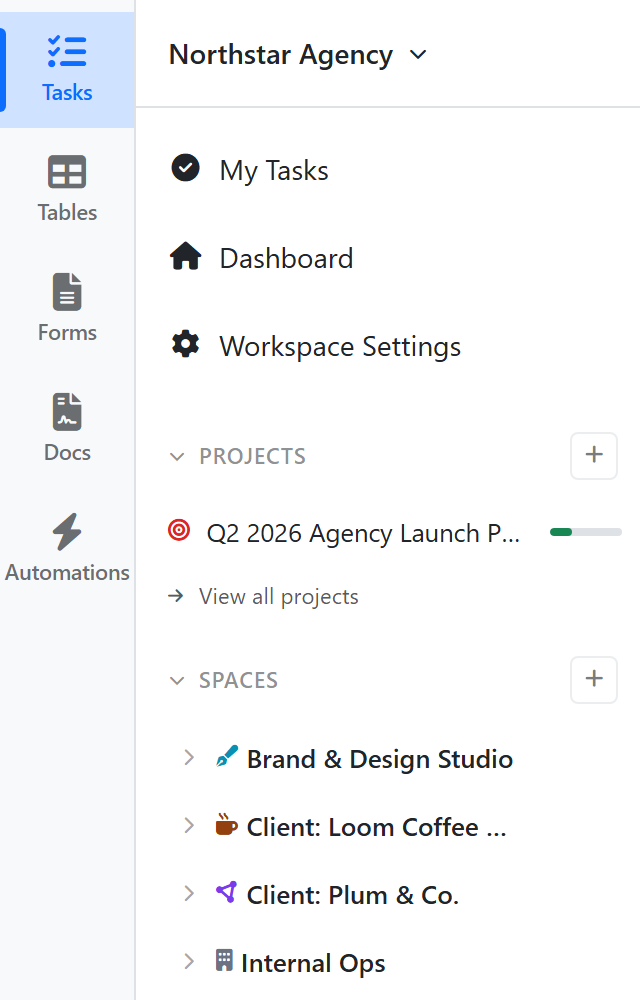
Creating a space
Click the + on the Spaces section header — it opens the Create Space form directly (there's no intermediate "choose Space" menu step). Give it a name, optional color and icon. New spaces auto-create a default "Tasks" list and 5 default statuses (Open, In Progress, Complete, Completed, Cancelled).
Creating a folder
Hover a space in the sidebar and open its + (Add) menu, then choose New Folder (it sits alongside New List). Folders are optional — many small workspaces don't need them. (The space's ⋯ menu is for Edit Space, Manage Statuses, Manage Fields, and Delete — not folder creation.)
Reordering
Drag spaces, folders, and lists to reorder. Drop indicators show exactly where the item will land before you release.
Privacy
Spaces and lists can be made private — restricted to specific members or groups. Private items don't appear in the sidebar for users without access.
Privacy is set up inside the app only. It can't be turned on through the public API, because privacy depends on granting access to specific members or groups — something an API key can't specify.
Deleting a space
Deleting a space also deletes every list and task inside it. A confirmation dialog warns you before this happens. The public API doesn't allow deleting spaces, for the same reason.