Routines
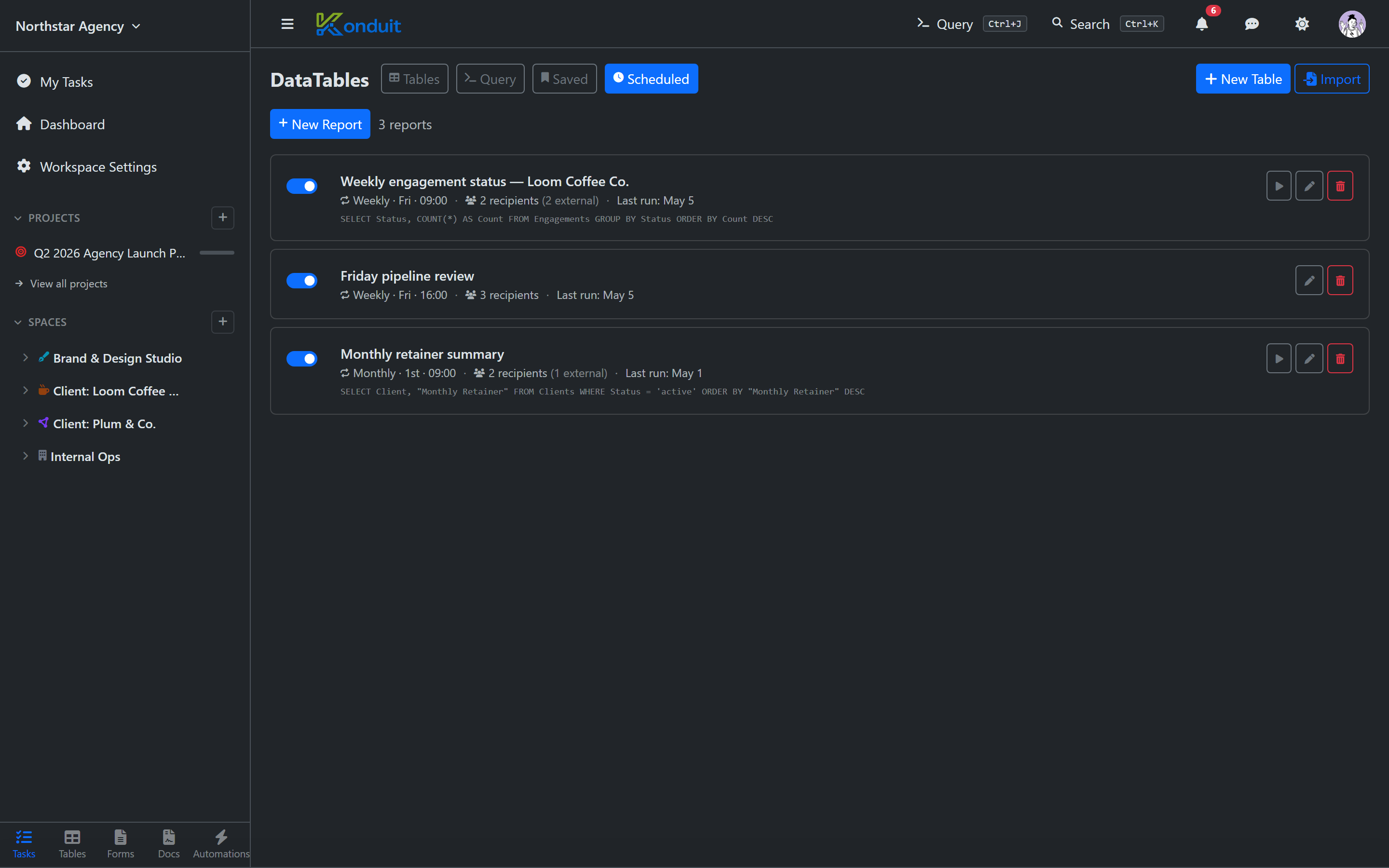
A Routine runs a saved KSQL query on a recurring schedule, then emails the result to a list of recipients. (You may still see the older name "scheduled report" in a few places; it's the same feature.)
Routines are available on Pro and above — Pro includes 5 per workspace, Business is unlimited.
Common uses
- Weekly billable-hours summary to the finance team
- Daily overdue-tasks digest to project managers
- Monthly customer-health report to account managers
- Yearly KPI rollup to leadership
Creating a routine
From the DataTables area, open Routines and choose New routine. Configure:
| Name | Internal name for the routine (also used as the email subject) |
| Schedule | A frequency plus the day/time it runs — all dropdowns, no cron (see below) |
| Source | A saved query — build and save it in the Query tab, then select it here |
| Recipients | Workspace members and/or external email addresses |
Every routine emails an HTML rendering of the results and automatically attaches them as a CSV file (whenever there are rows, under a 5 MB cap) — there's no format choice to make. The email subject is simply the routine's name; there are no {date}/{week}/{month} subject tokens.
Scheduling
There are no cron expressions — scheduling is entirely dropdown-driven. You pick a frequency, and the follow-up controls adjust to match:
| Frequency | You also pick |
|---|---|
| Daily | Time of day |
| Weekdays | Time of day (runs Mon–Fri) |
| Weekly | Day of week + time |
| Monthly | Day of month + time |
| Yearly | Month + day of month + time |
Times run in the workspace's configured timezone (default: America/New_York).
External recipients
You can email routines to people outside your workspace — clients, executives, contractors. Each external recipient gets the result as plain HTML (no Konduit login required); they can't drill into the underlying data. Emailing people outside the workspace is a Pro-and-above capability.
External recipients must be listed explicitly — there's no "anyone with the link" mode, for security.
Result limits
Routines are subject to the same KSQL row cap (1000 rows). For larger extracts, use the in-app CSV Export from the Query Console — a separate export built for bigger pulls, with a higher limit.
Failures
If a routine fails to deliver (a mail problem or a bad recipient address), the failed run is logged and the routine simply runs again at its next scheduled time. There's no automatic retry/backoff, no auto-pause after repeated failures, and no owner alert.
Disabling a routine
Flip the Enabled switch off on the routine's row in the Routines list. Disabled routines stay set up but don't run — handy for vacations or seasonal reports. (There's no separate "Paused" toggle in the editor.)
Changing the query
The routine's Run query (play) button loads its saved query into the Query tab; the pen button edits the routine's own schedule and recipients. To change the SQL itself, edit the underlying saved query in the Query tab — the routine picks up the change on its next scheduled run.
Next
- Dashboards — for live, on-screen metrics
- Automations — for event-driven workflows instead of scheduled ones
- KSQL