AI Assistant
The AI Assistant is a chat panel built into every workspace. It understands your workspace — your spaces, lists, tables, fields, and data — and can build things for you, answer questions, and explain how Konduit works, all in plain English.
Look for the ✨ Ask AI button in the top bar (the wand-and-sparkles icon). Click it and the assistant slides out from the side.
What it can do
You describe what you want in your own words — the assistant maps it to the right Konduit feature and does it.
| Ask it to… | It can |
|---|---|
| Build structure | Create spaces, lists, projects, and DataTables |
| Add fields & columns | Add custom fields to tasks, add columns (including formula and linked-summary columns) to tables |
| Set up data | Insert rows, add tasks, add comments, watchers, and dependencies |
| Create views | Add saved list and table views with filters and sorts, and hand you a shareable link |
| Automate | Build automations — "when X happens, do Y" |
| Build forms | Create public intake forms that turn submissions into tasks or rows |
| Build dashboards | Add dashboard widgets — counts, charts, lists |
| Answer data questions | Query your tasks and tables read-only ("how many open bugs by severity?") and report back |
| Explain filters | Describe what your current filters show in plain English, tweak them, or save them as a view |
| Explain features | Teach you how any Konduit feature works, step by step |
When it makes a change, the assistant leaves a trail of what it did, with an Open button to jump straight to the new table, list, form, or view.
It knows what you're looking at
The assistant is context-aware. Words like "here", "this list", or "this table" resolve to whatever you have open, so you can say "add a due-date field here" without naming the list.
How to open it
There are three ways in.
1. The Ask AI button
The ✨ Ask AI button in the top bar opens the panel from anywhere. Click it again (or the X) to close. Use the expand control to widen the panel when you're working on something involved.
2. Empty-state nudges
The same sparkle appears throughout the app at moments where the assistant can help — for example when a list or table is empty, when you're adding a column, right after you link two tables, after a CSV import, or when a dashboard widget or query hits an error.
These nudges open the panel already primed with context: a greeting that names what you're on, plus a few starter chips that show the kinds of things you can ask. Click a chip to drop that prompt into the composer, then edit it in your own words before sending.
3. The new-workspace welcome
When you create a brand-new workspace, the welcome step can hand you straight to the assistant. Tell it your industry and what your business does, and it will offer to set up tables, lists, and a dashboard around your domain — a whole starting workspace from one description.
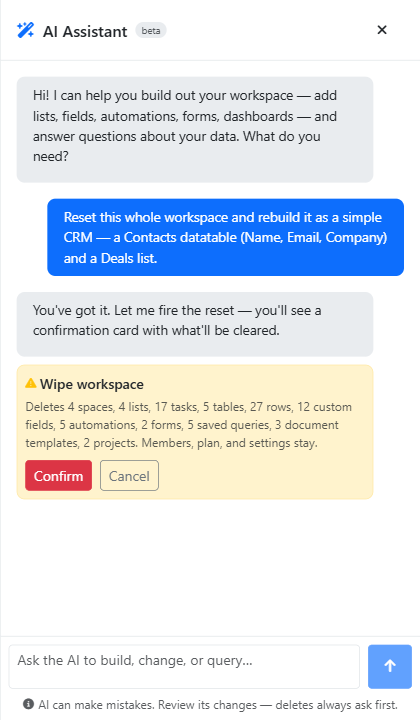
Confirming risky actions
Most requests run immediately. But anything that could destroy or overwrite data pauses and waits for you.
When the assistant proposes a risky action, it shows a confirmation card with a plain-English impact summary and two buttons:
- Confirm — go ahead and apply it
- Cancel — call it off
Nothing happens until you click Confirm. The card is the safety gate.
Actions that require confirmation:
- Any delete — lists, tables, spaces, fields, columns, projects, rows, tasks
- Wiping a workspace
- DataTable data changes — updating or removing rows, columns, or field options (reference data has a wide blast radius)
Everyday task changes — updating a task, adding a comment, starting a timer — apply right away without a confirmation step, because they're easy to reverse.
Conversations & history
Each chat is saved as a thread. Use New chat to start fresh, and History to reopen, pin, or delete past conversations. Pin a thread to keep it — unpinned threads are eligible for automatic cleanup after 90 days.
AI credits
Every AI turn spends credits, and each plan includes an allowance.
| Plan | Included AI actions |
|---|---|
| Free | 10 total (lifetime — does not reset) |
| Pro | 500 / month |
| Business | 5,000 / month |
On the Free plan the 10 actions are a one-time lifetime allowance; once they're used, the assistant is paused until you upgrade. Paid plans refresh every 30 days.
Need more? Paid plans can buy add-on packs:
| Add-on pack | Price |
|---|---|
| +100 actions | $5 |
| +1,000 actions | $25 |
| +10,000 actions | $125 |
Add-on credits are used only after your monthly allowance runs out, and they don't disappear at the next refresh.
What a turn costs
Not every turn costs the same — you're charged for what actually happened:
| Turn | Cost |
|---|---|
| A question, an explanation, or a clarifying reply | 1 credit |
| A change that actually ran (or a confirmed destructive action) | 2 credits |
| Building a whole workspace, or a turn that used web search | 4 credits |
Asking "how do I…" costs the least — the assistant teaches you the manual steps rather than doing it for you, so you learn the feature and spend fewer credits.
Every AI action has a manual equivalent
The assistant is an accelerator, never a requirement. Everything it can do, you can do yourself in the UI — build a table, add a field, create an automation, save a view. If you'd rather learn the mechanism (or you're out of credits), the assistant will happily walk you through the manual steps, and the rest of this help section covers every one of them.
Next
- Quick Start — your first 5 minutes
- DataTables — the tables the assistant builds
- Automations — what "when X, do Y" rules can do
- Dashboards — widgets the assistant can add